- Resolved an issue impacting the styling of the desktop recorder’s device selector buttons when embedded within websites utilising Bootstrap 4 or 5. The fix now ensures a consistent styling.
- Fixed a sizing issue with the canvas displaying the video with the background blurring effect active. Previously, the canvas did not always resize appropriately. This fix ensures dynamic resizing of the canvas.
Changelog
Every update to the Pipe platform: new features, improvements and fixes.
Bootstrap 4 for dashboard.addpipe.com
Improvement- We’ve finally upgraded the account dashboard to Bootstrap 4 (4.6.2).
- As a result, all the texts in our dashboard will respect the font-size specified in your browser settings (16px by default). We’ve also removed any hardcoded font-size in px of our own meaning all texts should scale together with your browser level font-size setting.
- As a result, most content text will be slightly bigger since Bootstrap 3 defaults to 14px while Bootstrap 4 defaults to 1 rem, which is normally 16px.
- We’ve also upgraded jQuery from 1.12.4 to 3.7.1.
- The logo will finally appear sharp and clear on all devices.
- Dashboard users can swiftly dismiss the notifications displayed at the top of the page.
- “Occurred” is finally spelled correctly
We introduced a new download button in the bottom menu of the desktop recorder delivered using the 2.0 embed code. By default, the button is visible, allowing users to download the current recording locally, even if it is not fully uploaded to the server. The button can be hidden by setting the HTML embed code option
pipe-downloadbtnor the JS embed code optiondownloadbtnto0. There’s also a newdownload()function in the 2.0 JS Control API.Previously, a minor issue existed where the timer at the top did not reset to 0 immediately after initiating a second recording. It momentarily displayed the duration of the previous recording before updating to 1 second. This bug has been successfully fixed, and now the timer’s value immediately resets to “00:00” the moment a new recording is started.
- We resolved an issue where the countdown timer was displayed behind the audio-only icon. The countdown timer is now displayed prominently over all icons located in the center of the recording client.
- We addressed a bug in screen recording where changing the microphone using the device selector while the “Also share audio tab” option in Chrome was enabled resulted in the loss of audio from the shared window. This issue has been fixed, and now the audio from the window is always combined with the microphone audio stream, indicated by the title in the device selector as “(with system audio)”.
- We fixed a previous limitation where enabling the background blurring effect during recording playback caused the video to stretch and excluded the miniature video from the effect. Now, the background blurring effect can be applied seamlessly during playback.
Better embed code for audio recordings
ImprovementWe changed the HTML playback embed code generated for audio recordings in the dashboard’s recordings list: We replaced the video tag with an audio tag and removed the poster, 0 width, and 0 height properties.

Starting today, all trial accounts will have a 1 GiB max file size limit. The limit applies both to recordings made on the spot using the webcam, microphone or screen recording and to recordings uploaded through the desktop recorder and mobile native recorder.
Accounts with paid subscriptions will continue to have the existing 5 GiB limit.
Granular file size limit for POST uploads
ImprovementUploads of (existing) recordings through the desktop recorder and the mobile native recorder will now respect file size limit specified in the database, if any. The default, remains 5GiB. Previously the limit was hard coded to 5 GiB.
Timer & positioning improvements; File size fixes.
Improvement FixPreviously, the countdown timer/size area was not visible anymore when the bottom menu was disabled (
showmenu=0). Now, it stays at the top of the recording client regardless of the bottom menu’s visibility.When the bottom menu was hidden (
showmenu=0), the bottom right device selector buttons had a bigger bottom margin than necessary. This has been rectified, and they are now appropriately spaced, ensuring a cleaner layout.Fixed the issue with the recorded file size resetting to 0 after the recording process was stopped.
and better spacing for device selector buttons with no menu

Starting today, the 5 GiB limit (5 * 1024 3 bytes) also applies to recordings made on the spot using a webcam/microphone or screen recordings.
Clicking the timer at the top of the desktop recording client now toggles between displaying the current/max recording duration and the current/max recording size (“8MiB / 5GiB”).
Save label for save icon
ImprovementPreviously, the save icon in the desktop recording client was represented solely by a diskette icon. Now, it features an added label next to it with the text “Save,” providing a more intuitive representation of the Save functionality.

Separately, we’ve made preparations to introduce a max file size limit.
Fixes and improvements for Account Dashboard
Fix ImprovementWe fixed the audio/video playback modal at /recordings on different browser widths;
There was an issue with the /recordings page scrolling to the top when clicking Play, Origin, or Edge on any recording in the list. As a result, after closing the Playback window, the user needed to scroll back down to reach the same point. Now, it behaves as expected;
We migrated the site from Bootstrap 3.3.7 to Bootstrap 3.4.1.
- We fixed an issue where the camera name was not being correctly saved when the blurring effect was active.
- We fixed an issue where, if the background blurring effect was activated during playback mode, the recording client would stop working. Now it behaves as expected.
- We fixed a bug where the recording client’s device selector buttons (camera and microphone) malfunctioned after an initial device change if the bottom menu was disabled, rendering the device selector unusable with disabled buttons. Following our fix, the device selector now functions as expected even with the bottom menu disabled.
- Previously, attempting to initiate a screen recording without a connected camera caused the recording client to fallback to an audio-only mimetype, resulting in a failure to start the recording. With our fix, the screen recording now functions as expected regardless of whether a camera is connected or not.
We added the options 1440p (2560x1440) and 2160p (3840x2160) in the ‘Resolution’ dropdown in the account dashboard. Until now, the dropdown has had only 5 options (240p, 360p, 480p, 720p, and 1080p).
Changed Timer Placement
ImprovementThe timer in the recording client has been relocated from the bottom to the top. It now features a dark background, and while recording, a red dot is dynamically displayed next to it. The timer now functions as a counter-up, starting from 0, progressing up to the maximum recording time (e.g., “00:00 / 10:00”). In playback mode, a play or pause icon appears next to the timer, reflecting the playback status.
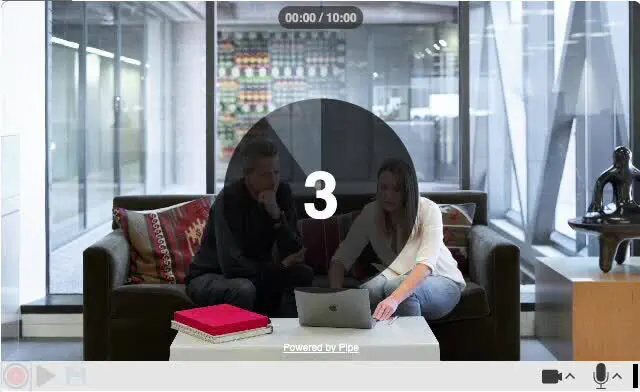
We added a countdown timer feature to the 2.0 desktop recording client. It can be enabled by setting the new countdowntimer embed code option to a desired countdown value (e.g., setting it to 3 will initiate a countdown starting from 3 seconds).
The countdown begins after clicking the “Record” button, with the seconds prominently displayed in the center of the recording client. If countdowntimer is not set or is set to 0, the recording will start immediately after pressing the “Record” button. By default, the countdown timer is disabled.
We introduced a beta version of real-time background blurring functionality in the 2.0 desktop recording client.
The feature can be activated by setting the new embed code option bgblur to 1. The effect can then be toggled within the camera device selector menu.
It is compatible with Chrome, Safari, and Firefox on mobile and desktop platforms, but some limitations exist, such as partial functionality on the environment-facing camera in mobile environments.
Note that the feature relies on approximately 2 MB of library files for the face detection model, which will load only on the first activation of the effect in a recording session.
Fixed false new device notifications in Safari; Enhanced readability for top message.
Fix ImprovementPreviously, Safari triggered ondevicechange falsely when the embedded recording client was opened in a window, leading to false green notifications on the device selector buttons. These misleading indicators suggested new device connections, causing confusion. This issue has been addressed, and the device selector notifications now accurately reflect only real device connection and disconnection events.
The font size for the top messages shown by the recording client has been increased for improved readability. The messages were shown on choppy connections.
Previously, if Safari on macOS or iOS/iPadOS lost focus (minimized, moved to the background, etc.) while recording, the total recording length would sometimes be shorter than the actual duration of the recording. This issue has been resolved. Now, the recording length accurately reflects the actual duration.
Previously, the audio-video profile XML was loaded only when clicking the [Record Video] button. This meant that, when clicking that button, both our client delivery and ingestion servers had to be online for the recorder to continue and build the UI. If the CD servers where inaccessible or if the user ran into XML file retrieval errors, the user would get a blank screen. This potential issue has been resolved by loading the audio-video profile XML earlier, together with the other files that must be loaded from the CD servers (
precheck.phpand the language .xml file). As a result, when clicking [Record Video], the recording client is only dependent on one set of servers (our ingestion servers). In the event of any issues with file retrieval, a clear error message “Error loading audio-video profile XML data.” will be shown.
47 unused entries were removed from the language XML files (
en.xml,de.xml,es.xml,fr.xml). Out of 93, only 46 remained. This change reduces the size of each language XML file by approximately 38.4%, equivalent to 1kb in file size. The more significant win is that our recording client is now a lot easier to translate.The value of
recorderTypepassed with theonReadyToRecord()(for embed code2.0) andonRecorderReady()(for embed code1.3) functions has been changed toHTML5to accurately reflect the recorder type. Previously, the value ofrecorderTypewas locked towebrtc, which was incorrect, since we do not use WebRTC. The documentation has also been checked as, a while a go, it contained erroneous values.
Our main recording client now has a device selector on both desktop devices and mobile devices.
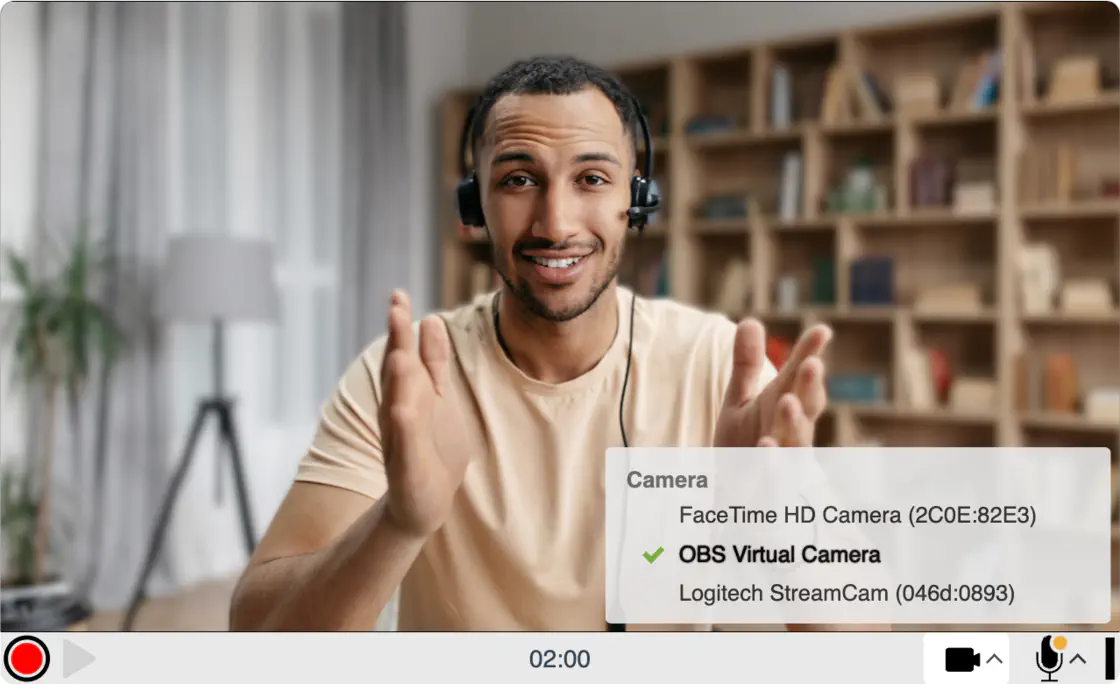
You can choose your desired camera and microphone from the list of available devices. It updates in real time with changes to the device list, it continues to show disconnected devices for 1 minute and there’s a loading animation for the delay between switching devices.
For more information check out the blog post.
Other updates:
- If there is no camera but there is a microphone, the recorder will switch to audio-only mode. This behavior was implemented a long time ago but now, if you connect a camera, the recorder will switch to video mode and if you remove the said camera, the recorder will switch back to audio-only mode.
- If there is no camera and no microphone, the recorder will display a proper message (“Connect a microphone or camera with microphone to record audio or video” instead of “You need a camera to record video”) and allow you to connect a camera or microphone, select it and record. Previously, the recorder would end up in a dead-end state.
- On Windows, if the camera is used by another app, the recording client will allow you to (connect and) select a different camera. Previously, the recorder would end up in a dead-end state.
2.0 embed code only.

Recordings that were started while the Pipe Desktop Recording Client was disconnected (but yet to be acknowledged by the recorder as disconnected) failed to resume correctly upon the recorder reconnecting.
This led to the Desktop Recording Client getting stuck at the ‘Uploading…100%’ message while the server discarded the sent data.
Now, the server correctly recognizes such instances, and the recordings will (correctly) resume upon reconnection. As a result, these recordings will be correctly saved and processed.
We have removed the BOM (Byte Order Mark) from the beginning of 3 of our language XML files (en.xml, de.xml and fr.xml). The es.xml file did not have it.
This change fixes a very rare issue where the xml file would trigger a parse error in more strict XML parsing environments. We’ve seen the issue with an Ionic/Capacitor app trying to parse our en.xml file.
Custom language docs have also been updated with BOM and Content-type header recommendations.
We’ve updated our server side code to detect and discard duplicate slices sent by our Pipe recorder.
Until now, this issue could’ve occurred whenever the Pipe recorder was disconnected and then reconnected during a recording.
Recordings that contained duplicate slices could’ve displayed some minor artifacts during playback, issue which is now fixed.